
Setting up Spaces, Hackatime, and Python
Before you can get started on your project, you've got to set up the spot where you can put your code into. But first, how does code even work?
Code is just text with a bunch of fancy rules telling a computer what to do. Since it's just text though, we have to have a special piece of software that reads that text and turns it into instructions that a computer can understand. Hack Club has a browser-based tool called Spaces that lets you set up this special piece of software without having to worry about downloading anything.
Click the big "Get Started" button on the homepage of spaces.hackclub.com. Choose the "Continue with Hack Club" signup option, which will prompt you to sign in and authorize with the Hack Club Auth account that you just created.
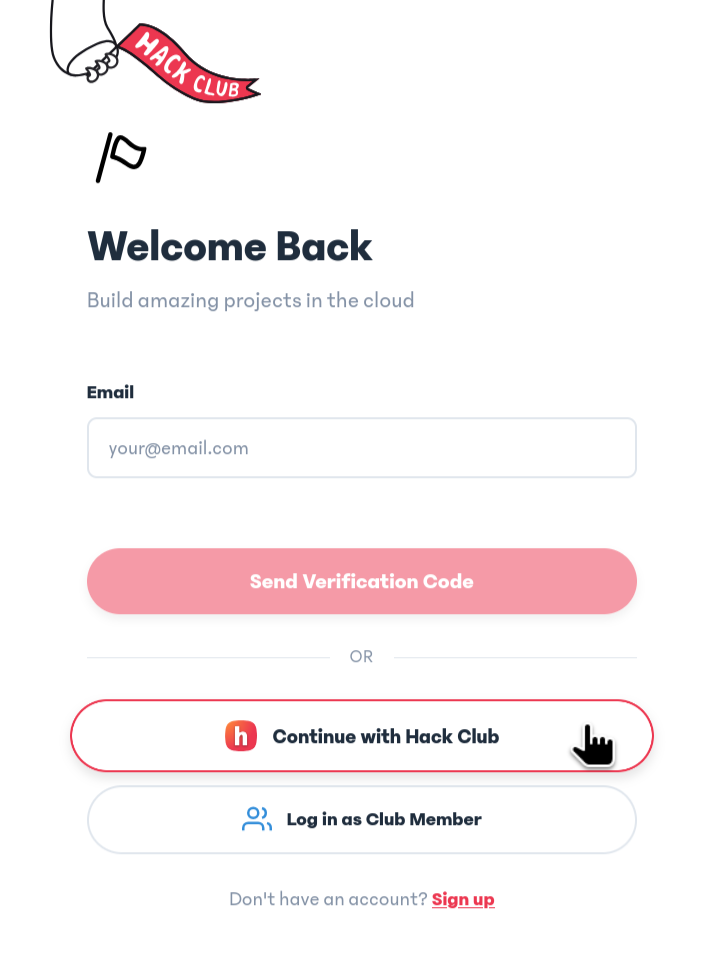
Now, you should be in the Spaces dashboard. Before you set up the spot where you'll develop your project, let's set up Hackatime.
Hack Club almost always gives out prizes based on the amount of time spent coding. To be able to verify the number of hours spent on a project before we ship out rewards, we require participants to use time-tracking tools. For Folktale and many other coding-based programs, the tool we ask you to install is called Hackatime. It lets you see how much time you've spent coding on projects and overall. It also sends us some useful data to catch anyone trying to cheat the system (all private data stays private, though!).
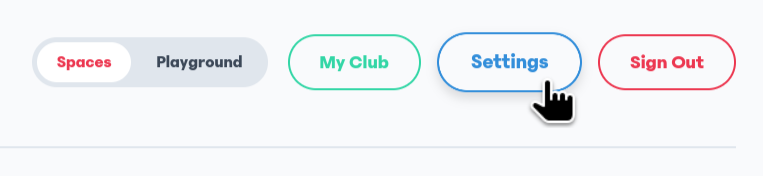
Let's set it up with Spaces! Click the "Settings" button in the top right corner. In the Profile section right at the top, you will see a field called Hackatime API Key. In the little bit of text underneath it, you'll find a link that will bring you right to this key.
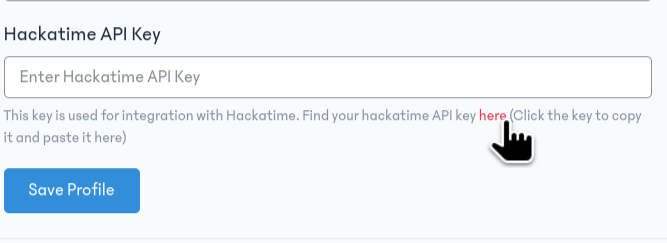
You might have to sign in with Hack Club Auth again. It's also possible that you might be redirected to a setup page that won't redirect you back. If this happens, you will have to go back to the Spaces settings page and click the link again. It'll be quite obvious once you manage to get to the page with the API key on it.
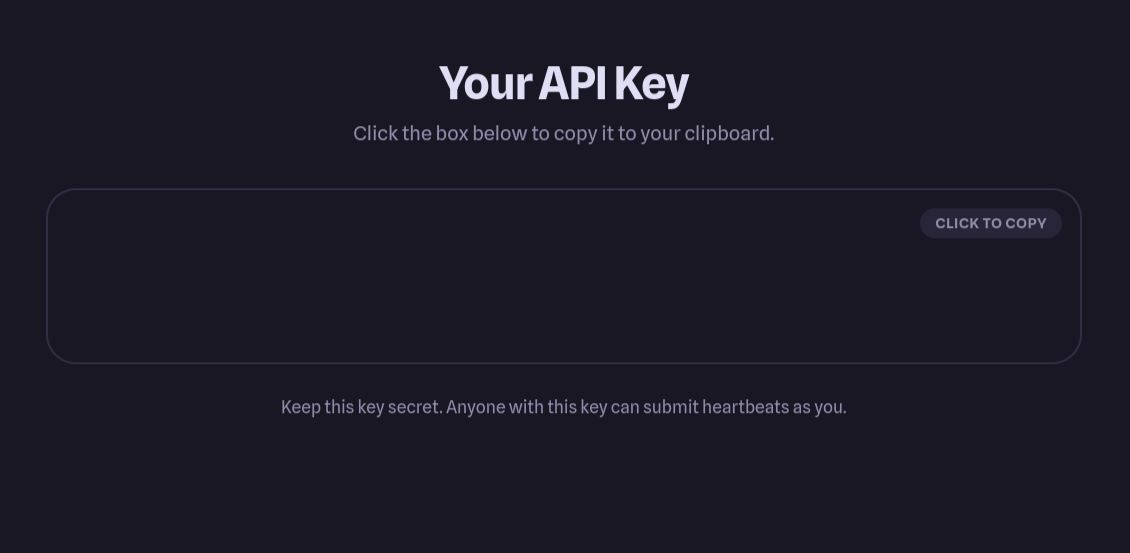
Copy and paste this API key back into the Spaces settings field, then click "Save Profile". Finally, return to the dashboard. It's time to make our coding environment!
Click the "+ Create New Space" button. Set the three fields there like this:
- Space Type: Make sure this is set to VS Code Server
- Password: Pick a password that you can remember
- Home Directory: Setting this will let you pick the name of your project. This field should be set to
/config/PROJECTNAME, but swap out PROJECTNAME here with whatever you'll want to call your game. If you aren't sure, just put/config/folktale_game.
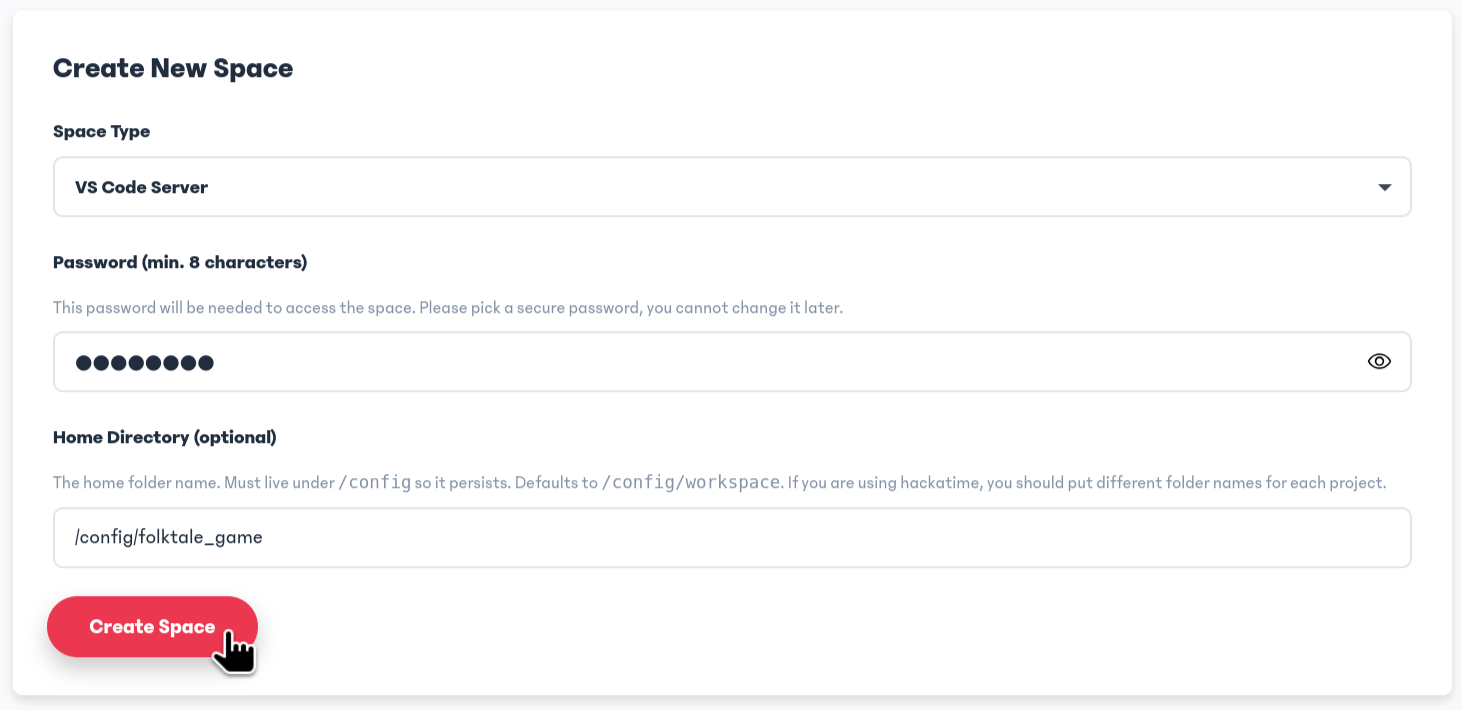
If your identity is successfully verified in Hack Club Auth, Spaces should let you click the big "Create Space" button!
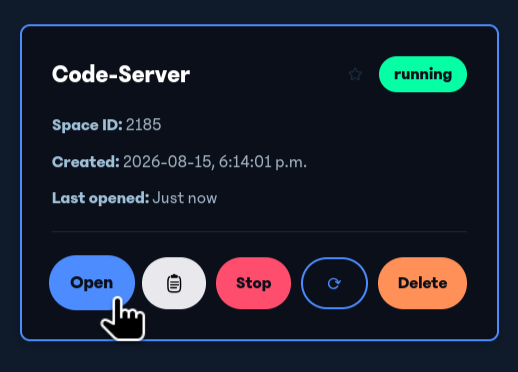
If all goes well, you should see a card with a blue "Open" button. Click it!
After entering your password, you'll be brought to an instance of Visual Studio Code. This is one of the most popular code editors out there, but it can look a bit intimidating to get into.
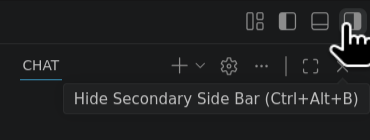
First, close out a bit of the clutter. I would X out of the notification at the top complaining about restricted mode (if there is one) and the AI chat feature on the right side. For this, click the button in the very top right of the screen, the icon with a smaller rectangle in the right half. AI isn't something that will be used in Folktale, which will be expanded on in the next section of this guide.
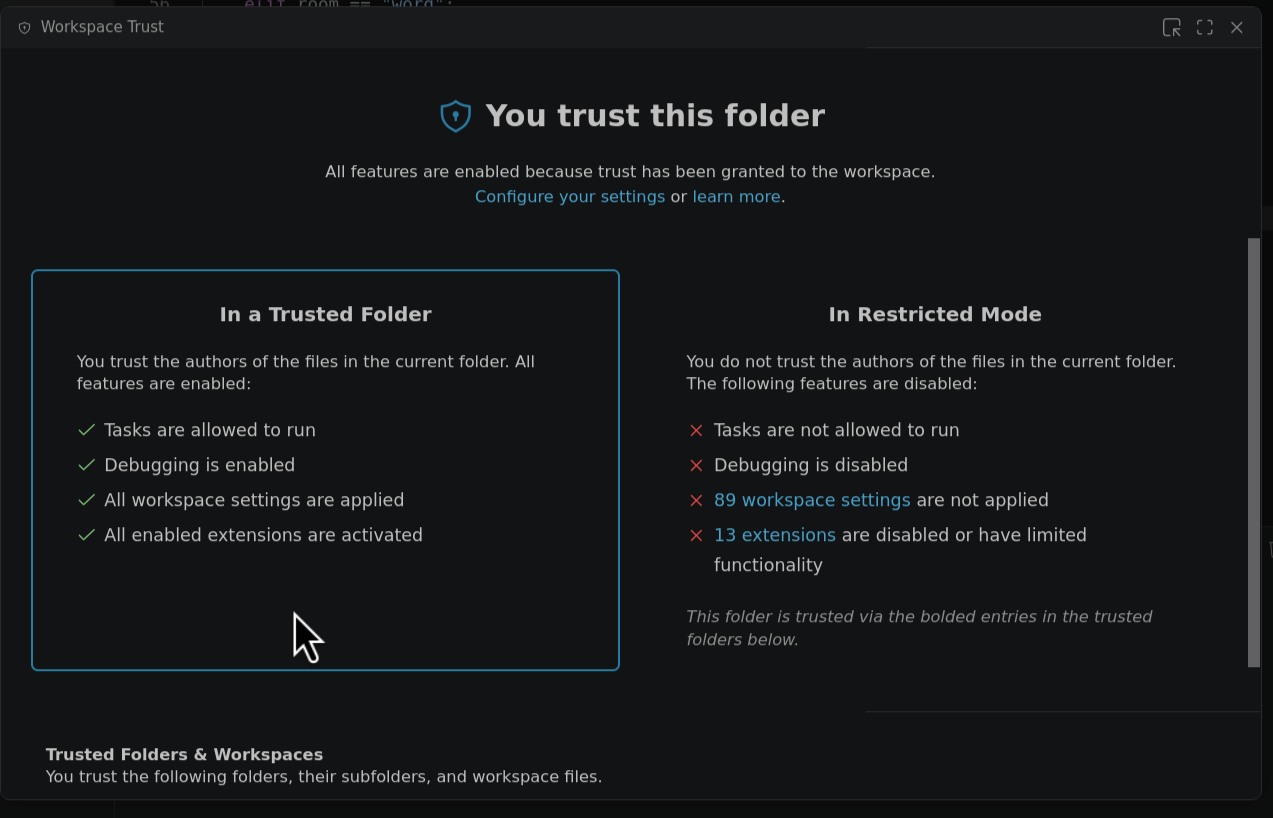
Look in the bottom left corner. You might see a "Restricted Mode" card there. If you click it, it'll open up a window where you can trust the folder. You'll need to do this to access needed features.
Also in the bottom left corner you'll find the Hackatime widget. It'll be saying something like "Start coding to track your time", then it'll tell you how long you have been coding today. If you don't see this, your Hackatime isn't working properly and your submission may not be valid. Always make sure the time is tracking, and if it isn't, troubleshoot yourself or ask for help in the #folktale Slack channel.

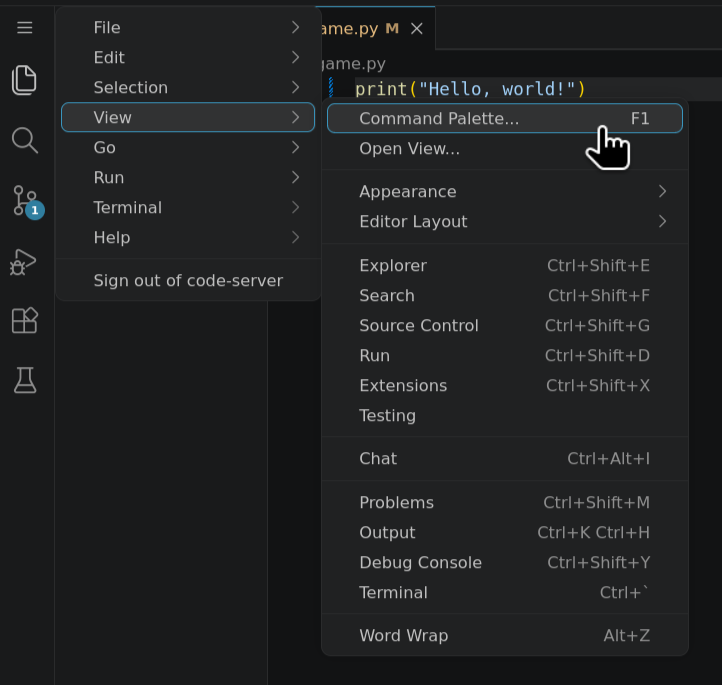
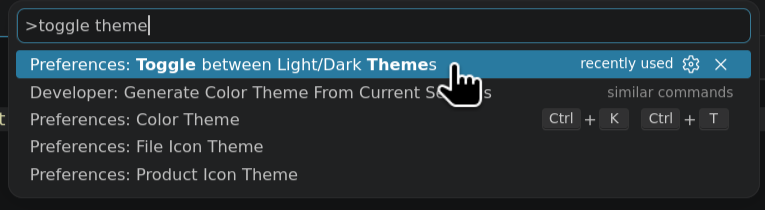
If you don't like light theme, you can switch to dark. First open the Command Palette (this lets you run special editor commands) by either pressing F1 or clicking the three-lines (☰) and going to View > Command Palette. Search "Toggle theme" and select the option that reads "Preferences: Toggle between Light/Dark Themes".
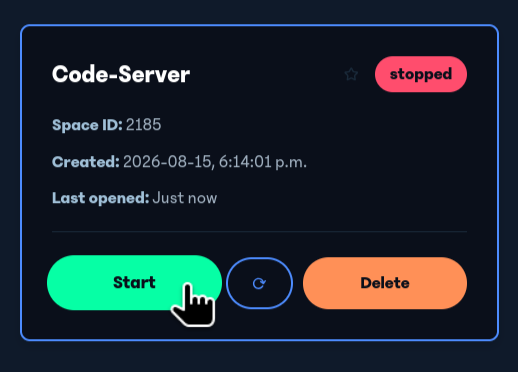
At some point, you might get some reconnection errors with the instance popping up on your screen. Go back to the Hack Club Spaces dashboard, click "Start", and then click "Open".
Now, think back to earlier in this section when we were learning about the special software that turns our rules-based text into something that a computer can understand. We'll actually set that up now. I'm going to throw a few definitions at you:
- Python: This is the programming language that we will be using to make our text adventure game. Programming languages are the rules that our text has to be able to follow in order for a computer to be able to understand it. Python is known to be one of the easier programming languages to pick up because its rules are more forgiving.
- Python code: Text that follows Python's rules, so it can be turned into something a computer can understand.
- The Python interpreter: This is the piece of software that looks at your Python code, makes sure it follows Python's rules, then tells the computer what to do based on the code you gave it.
Thankfully, the Visual Studio Code instance you're looking at right now in Hack Club Spaces makes it really easy to install and use the Python interpreter. To install it:
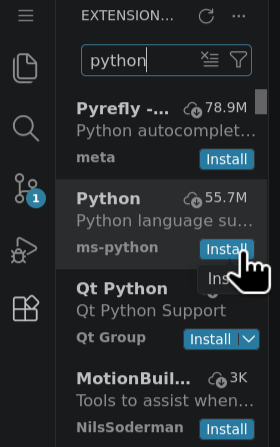
- Go to the Extensions tab by clicking the button in the sidebar with four squares but one is rotated, or doing Ctrl +
Shift + X
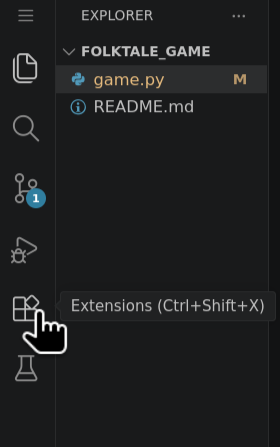
- Search "python" and install the Python extension by ms-python
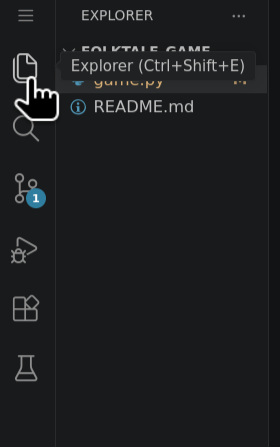
- Click back to the Explorer tab that you started on by clicking the two pieces of paper icon in the sidebar
- All done! You might see a yellow warning in the bottom right corner saying something like
Select Interpreter. You might be able to ignore this. If not, the path you should enter is/bin/python3.
If Step 4 Fails
For some people, step 4 has not been working and Python has not be available. If this happens, first try stopping then restarting the Space. If this doesn't work, then that means that for whatever reason, your Space failed to install Python when it was created. The only solution at the moment is unfortunately to make a brand new Space following the same steps.
We've now set up the Python interpreter. Let's test it out!
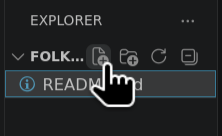
Hover over your project's name in the Explorer tab. There should be a few buttons that pop up. The one furthest on the
left lets you create a new file, click it. Name your file game.py.
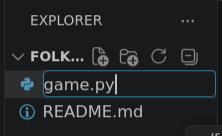
Let's put some code in there. This will follow Python's rules and correspond to a specific instruction the computer will handle. We'll look at this in more detail in the next chapter, so for now, just type out this code to make sure everything's working:
print("Hello, world!")
For all code snippets in this guide, I would encourage you to type them out yourself rather than copy-pasting. This will help you retain the Python code better.
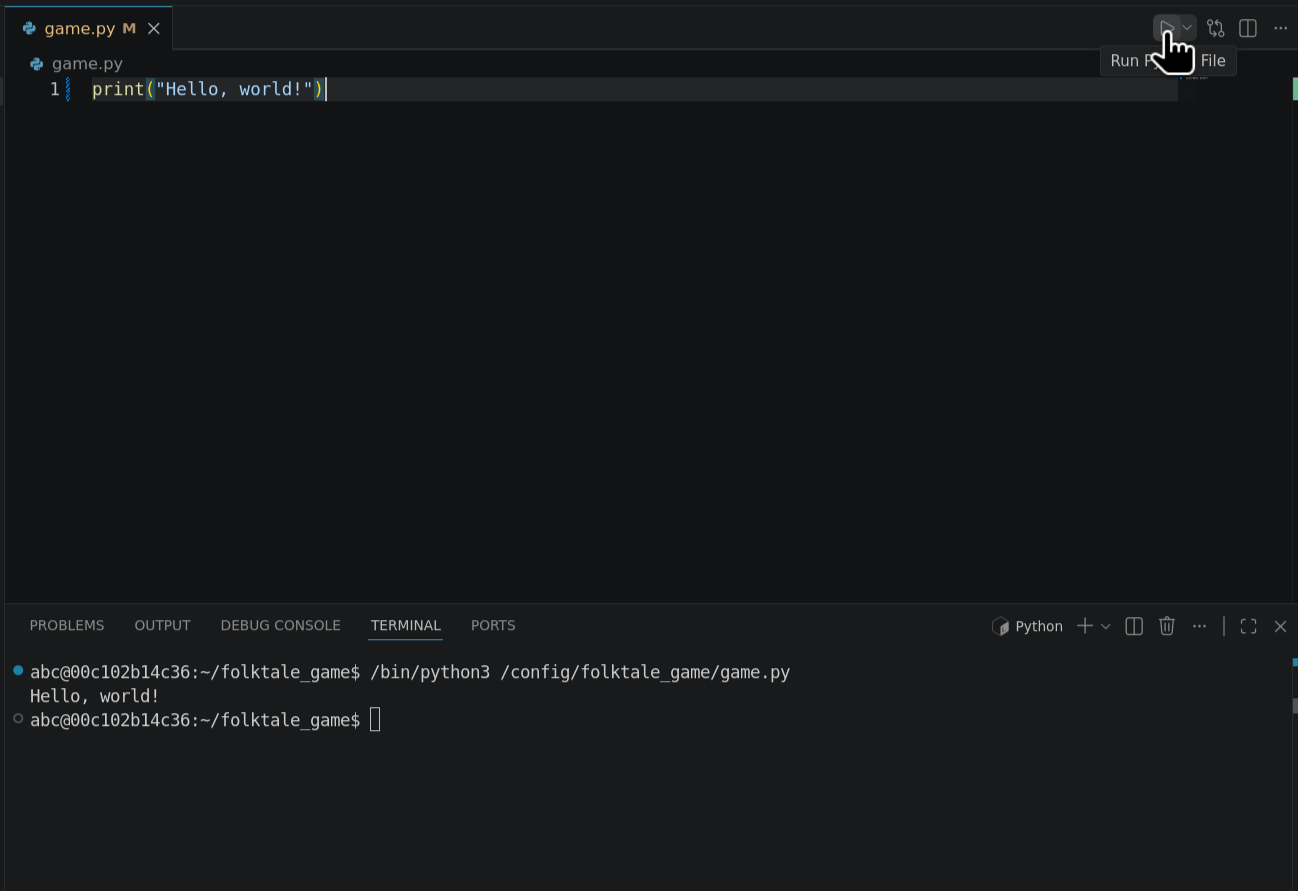
Visual Studio Code also makes it pretty easy to run the Python interpreter on this bit of code. Click the triangular play button in the top right corner, and you should see the words "Hello, world!" be printed out in the window that popped up at the bottom of your screen. There will be some other scary looking text, this is the command that the play button ran. Just focus on the "Hello World" bit, that's the important one.

Everything is now set up for you go make your game. Onwards to the next section to find out how to do it!